今天从困兽那里听到一个消息,说“Google已经开始接受AdSense for Feeds申请,只要你的网站 feed 订阅数在100以上,并且拥有 AdSense 帐户,就可以参加 AdSense for feeds (BETA)。申请地址:https://services.google.com/ads_inquiry/aff 。” 我对此很感兴趣,于是也点击上面的链接申请,显示的页面是英文的,我选择填写自己的信息后提交,大概几分钟后,收到Google发来的一封邮件,内容如下:
Thank you for your interest in AdSense for feeds.
Unfortunately, we're unable to accept your application for the program at this time. Because AdSense for feeds is currently in beta, we're unable to accept all applicants into the program. If we're able to extend our service to you in the future, we'll be sure to let you know.
自动被拒了。看来,中文Blog申请Google AdSense for Feeds还是有困难的,估计这个服务还是只对英文用户开放的。至少等英文用户使用稳定后,才可能考虑中文用户。
大家有兴趣也可以去申请试试,看看能否申请成功。
申请Google AdSense for Feeds
Domain aliases
Think you can write a better article? Edit our knol or post a comment. A knol is an authoritative article about a specific topic.
Domain name aliases are additional domain names associated with your primary domain and function with your current set of user accounts (nicknames are not included). For instance, if you own the domains abc.com, def.com and ghi.com, you can create a primary Google Apps account for abc.com and add def.com and ghi.com as domain aliases to abc.com. This will help you access all emails addressed to user@def.com and user@ghi.com in your user@abc.com Apps account.
You can also send mail from a domain alias.
To add an alias:
- Log in to your control panel at panel at https://www.google.com/a/your_domain.com. Be sure to replace your_domain.com with your actual domain name.
- Click Domain settings.
- Click Domain names.
- In the Domain alias section, click Add a domain alias.
- Add the domain name you want as an alias, and click Continue and verify domain ownership.
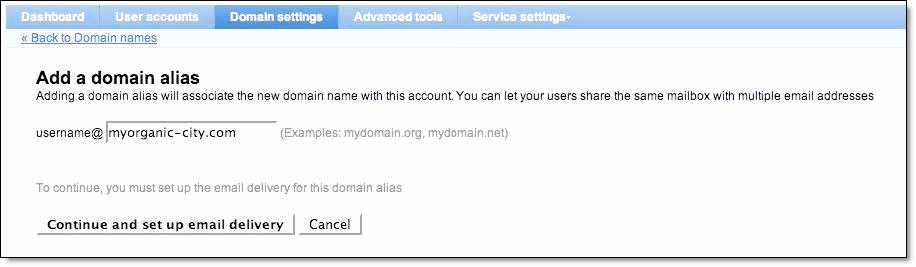
- Follow the instructions to verify domain ownership by uploading an HTML file or creating a CNAME record with your domain host. Step-by-step CNAME instructions for your domain host
- Click Verify and continue to set up email delivery.
- Follow the instructions to modify your MX records with your domain host. Step-by-step MX instructions for your domain host
- Click I have completed these steps. It may take up to 48 hours for your MX records to update.
You can check the status of the domain alias next to the domain name in the Domain names section of your control panel. If you've just clicked Verify or I have completed these steps, it should read Updating.
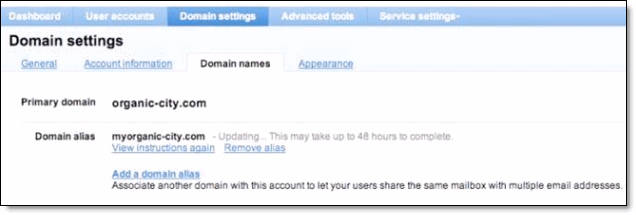
Note:
If you purchase a domain name from one of our registration partners while signing up for Google Apps, you can't add that domain as an alias to another existing Google Apps account. However, if your other domain was not purchased through our registration partners, you may delete the existing account and add that domain as a domain alias to the new account purchased through us.Google Apps for Administrators-App Engine URLs
How do I change the access URLs for my application?
If the Google App Engine application has already been set up in Google Apps, you will see an entry for the application on the Google Apps dashboard. The login URL for the Google Apps Dashboard is http://www.google.com/a/[example.com]. Be sure to include your actual domain name.
- Log in to the Google Apps control panel.
- Click on the service name (this is the same name as the Google App Engine identifier).
- On the service settings page, you may add or remove additional URLs for your service. An access URL for your service may be of the following forms:
- http://servicename.mydomain.com
- http://subdomain.servicename.mydomain.com
- and so on...
Once you specify an additional access URL, you may be prompted to complete the set up with your registrar if you did not purchase your domain through Google. If so, follow the provided instructions to configure CNAME records with your registrar.
If your access URL is of the form http://mydomain.com, also known as the naked domain, you will need to take some additional steps with your registrar.
Once you've signed in to your account with your registrar's website, configure the A records for your domain to point to the following IPs:
- 216.239.32.21
- 216.239.34.21
- 216.239.36.21
- 216.239.38.21
updated 7/22/2008
Firefox设置自动代理的方法
Firefox设置自动代理的方法
网站IP被封了,每次访问都要设手动代理麻烦
复制以下文本:
function FindProxyForURL(url, host)
{
url = url.toLowerCase();
host = host.toLowerCase();


if(dnsDomainIs(host,"phproxy.cspk.net.ru")) return "PROXY 165.228.132.10:3128";
else return "DIRECT";
}
这个文本,复制到记事本,以proxy.pac文件名存在firefox或自己喜欢的什么目录下
,然后在firefox的工具==>选项==>高级==>连接设置==>自动代理配置(URL),然后输入该文件的路径就行,如:file:///c:/firefox/plugins/proxy.pac 然后载入设置,OK
这样,这个代理就专门为phproxy.cspk.net.ru服务,别的网站却不使用代理。也就是访问phproxy.cspk.net.ru的时候自动使用该代理,访问别的网站不使用代理。
详细的PAC编写教程请见
http://wp.netscape.com/eng/mozilla/2.0/relnotes/demo/proxy-live.html
PS:如果重写了pac,要重新载入设置才可生效
来源:网络
BlogSpot模版资源列表
首先是关于Google Blogger的一则快讯,我站一位杨读者首先发现,今天下午17点的时候,BlogSpot又可以正常访问了,我于是立刻尝试了一下,证实深圳电信和上海电信都可以正常访问BlogSpot,这对于大多数人来说都是一个好消息。
Google Blogger在中国可谓多灾多难,今天八月份解封后在国内引起很大反响,BlogSpot的中文用户数猛增,对于这样一个功能强大而且速度飞快的免费Blog空间,获得中国用户的青睐也是理所当然的。然而可惜的是,今年十月份BlogSpot再次无法访问,不过今天BlogSpot忽然又访问正常,不得不令人慨叹世事多变啊。
既然BlogSpot已经可以访问了,我这里就收集一些BlogSpot的模版,来源于the ultimate blog template list,大家可以继续倒腾自己的BlogSpot了。
- Blog-Plates
- BlogDesigns
- Blog Fashions
- Blogger Templates
- BlogSkins
- Blog Templates @ ehsany.com - includes templates in Farsi
- CSS Colouring Book
- Elated Page Kits
- EyeForBeauty - Templates for your Journal
- EyeSites
- Free Blogger Templates for Blogspot
- Free BlogSpot Templates
- glish.com - Blogger Template
- Groovy Lizard
- Joyful Heart Designs
- Karysima Pre-coded Movable Type Templates
- Love Productions Blogplates
- noipo
- Point of Focus - Blogger templates
- shellen.com - Blogger Templates
- Spiderman 2 Blog Templates
- Starlit Dreams Weblog Designs
- Weblogger Themes


shackru reseach
shack.ru用的内容管理系统研究
Поздравляем с успешной установкой !
Вводные рекомендации и примечания :
1. Удалите директорию setup
2. Смените секретное слово в файле /apanel/base/danneo.permission.php
3. Закрыть доступ в /apanel/ через .htaccess
4. Шаблоны оформления находятся в директории /temp/
5. Файлы блоков находятся в директории /block/
6. Панель администратора находятся в директории /apanel/
С уважением Danneo ™ Все права защищены.
На правах рекламы :
1. Если хотите поддержать проект WEBMONEY R472687719226 - Z091573398375
2. Создание уникальных тем оформления от 50 €
3. Создание блоков от 15 €
4. Создание модов от 50 €
5. Тех.Консультации 5 € / час
6. Установка на сервер(не работаем с бесплатными серверами) 25 €
http://www.abiz.net.ru
订阅:
博文 (Atom)